
How do I create a ThinkGP account?
Click here to register for a free ThinkGP account. Please make sure that you have entered your correct email address and RNZCGP registration number if you are registered with this organisation. Failure to provide a valid registration number will lead to CPD hours not being reported automatically.
If you obtain an RNZCGP registration number after becoming a member of ThinkGP, please make sure you update this information on your account.
You can add or edit your RNZCGP CPD No. by clicking 'Edit your CPD number' at the top of your home screen.
How can I change my account details?

Click this icon at the top of any ThinkGP page to access/edit your account information. You need to sign in to your account to see this icon.
You can update your; Personal information, Professional information, Email and password, and Privacy settings here.
What if I can't remember my password?
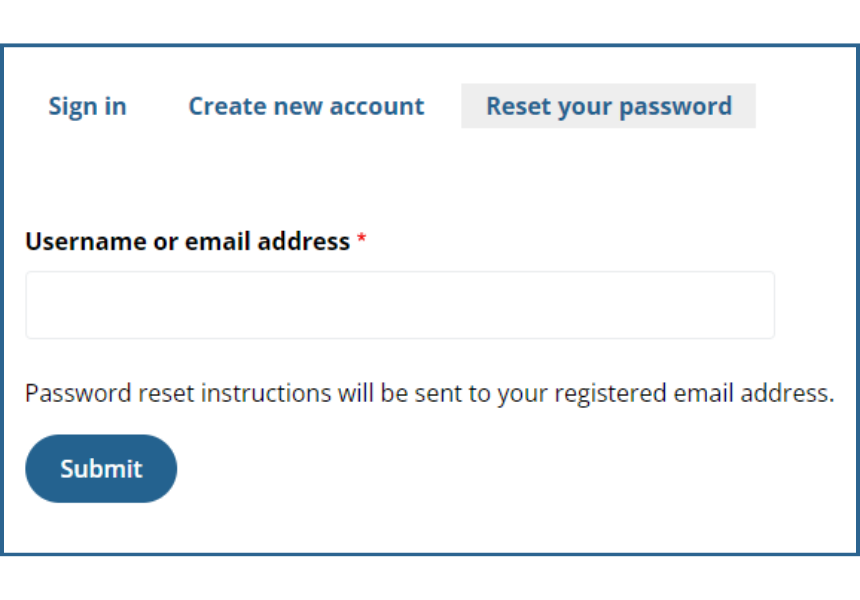
If you can't remember your password, click on the 'Reset my password' link on the login page. Enter the email address associated with your account and you will be sent a one-time access link that is valid for one use within 24 hours. Click the link within the email and it will give you access to your account and enable you to reset your password.
If you continue to have problems please contact us via the Contact us page.
Is ThinkGP content relevant to me?
While ThinkGP New Zealand’s educational content is primarily aimed at New Zealand general practitioners, our content covers a diverse range of topic areas that may be relevant to nurse practitioners, practice nurses, midwives, allied health professionals, practice managers and other healthcare professionals.
Depending on your profession, ThinkGP activities may be used for self-accreditation by non-GP healthcare professionals. Please contact your college or organisation for further details.
Do ThinkGP educational activities need to be completed in one sitting?
ThinkGP educational activities save your progress as you go, so you are able to close them and come back at any time to complete the module. However, individual pages within an activity (such as predisposing activities and evaluation forms) must be completed in one go.
How can I see what activities I have done, and re-download certificates?
Your activities and certificates can be viewed via your Dashboard.
Please log in to your ThinkGP account first.

Click this icon at the top of any ThinkGP page to access your Dashboard. You need to sign in to your account to see this icon.
Your Dashboard has a list of any 'Incomplete activities' and a list of 'Completed activities'. Clicking on the 'Certificate' button beside each of your completed activities will download your certificate in PDF form.
When will my CME credits get recorded?
ThinkGP reports activity completions to RNZCGP weekly. Your CME credits should appear within one week, provided your CPD number is correctly recorded. You can view or update your CPD number by logging into your account, where it will be displayed on your screen.
Why haven’t I got my CME credits for a completed activity?
The most common reason for ThinkGP users not receiving their CME credits is due to their RNZCGP registration number being incorrect or not being provided. The RNZCGP number you have entered can be viewed at the top of your Home page when logged into your account.
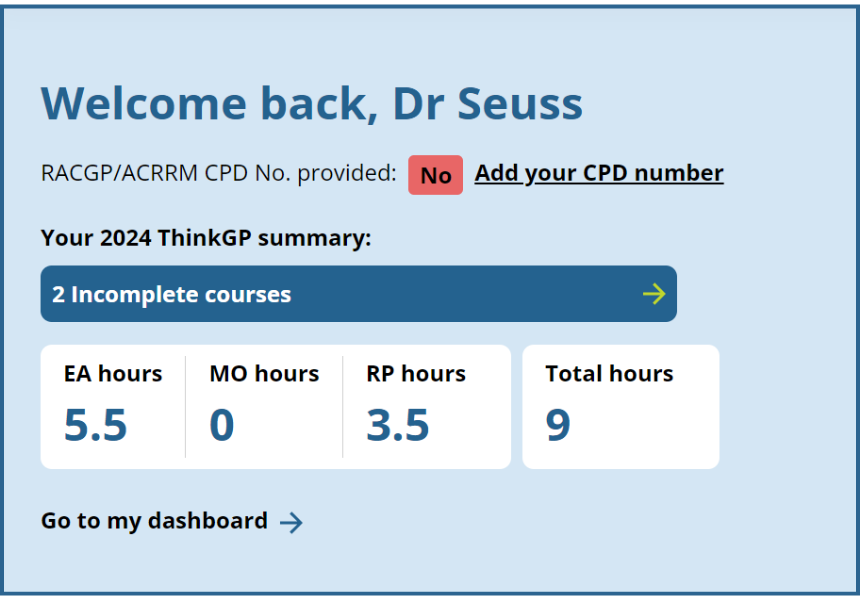
If you haven't recorded a RNZCGP CPD number it will say No and be red. You can click 'Add your CPD number' and it will take you to your Dashboard where your number can be added.
If you completed activities on ThinkGP before entering your correct registration number, please contact us to have these activities linked to your registration.
Why didn’t I receive a certificate or CME credits?
ThinkGP users do not receive a certificate or earn CME credits if they do not spend the minimum time required for each activity. Reading all slides thoroughly and answering questions properly will ensure you have taken the required time.
If you completed a ThinkGP activity too quickly and did not get a certificate, please contact us to have the activity reset.
Why is a course showing 'Course closed' on my Dashboard?
Please note: There are a small number of courses that have been temporarily closed while the website has been upgraded. We are progressively re-opening these courses. If you registered into an audit or course recently and it's now showing as 'Course closed' on your Dashboard, this could be due to the relaunch. Please check back in a couple of days.
A course on your Dashboard that shows 'Course closed' means that you have registered into a course that has since been closed. This means that the course is no longer available for you to complete.